
GPU Health Test Guide 2026: Check Performance, Stability and Lifespan
Your graphics card works like the engine of your PC. It turns raw power into smooth frames, sharp visuals, and fast motion on your screen. When your GPU performs well, everything feels quick and responsive, from gaming to video playback. But without regular checks, even a powerful GPU can slow down, overheat or fail when you need it most.
A simple GPU health test helps you avoid these problems before they grow serious. By checking temperatures, memory use and overall performance, you can target issues early and fix them fast. With basic care and quick tests, you can keep your GPU running strong, prevent sudden crashes and extend the life of your system.
What is a GPU?
A GPU, or graphics processing unit, handles everything you see on your screen. It draws images, runs animations and powers games, videos and design software. Without a GPU, your system cannot display smooth visuals or handle modern apps.
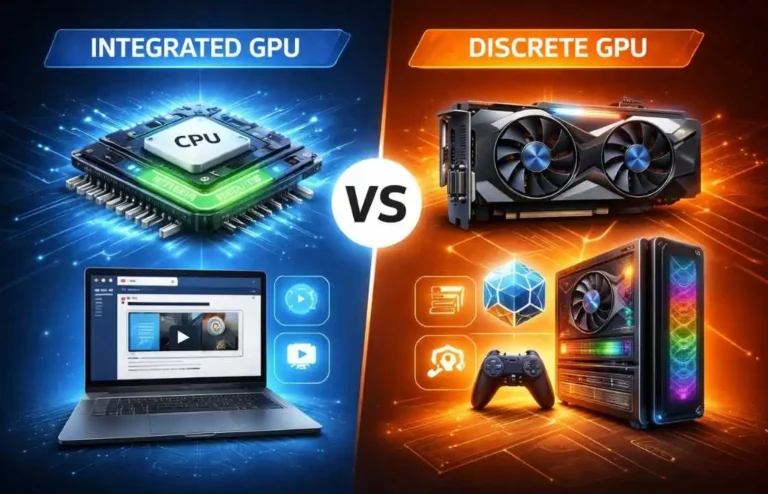
There are two main types of GPUs. An integrated GPU comes built into the CPU and shares system memory. It works well for basic tasks like browsing, streaming and light gaming. A discrete GPU is a separate card with its own memory and cooling. It delivers much higher performance for gaming, editing and 3D work.
Integrated GPUs save power and space, so laptops and budget PCs often use them. Discrete GPUs focus on speed and visuals, so gamers and creators prefer them. Because they work differently, they also need different health checks.
What is GPU Health?
GPU health shows how well your graphics card performs over time. It depends on temperature, stability and smooth operation under load. A healthy GPU runs cool, stays steady and avoids crashes or visual errors.
When GPU health stays strong, your system feels fast and responsive. When it drops, problems start to appear. That is why a regular GPU health test helps you avoid sudden failures and slowdowns.
How GPU Performance and Health are Linked
GPU performance is linked to GPU health, When health drops, performance drops too. When your GPU stays healthy, it delivers stable frame rates and smooth visuals. High heat can force the GPU to slow down. Memory or power issues can cause stutter and crashes. By tracking performance during a GPU health test, you can spot these problems early and fix them before they grow.
Signs Your GPU May Have Issues
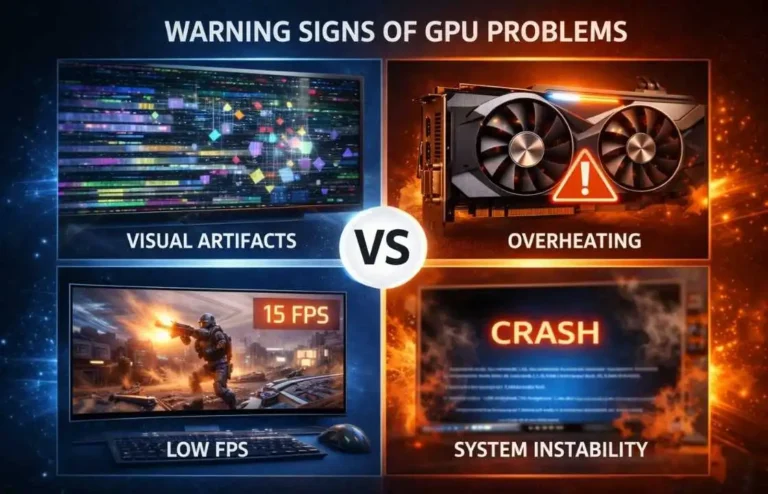
Your graphics card often shows warning signs before serious failure. These signs appear through performance drops, visual errors, heat issues, or software problems. If you spot them early and run a GPU health test, you can prevent major damage and extend your GPU lifespan.
Performance Warning Signs
A weak GPU often shows trouble through poor performance. You may see sudden FPS drops, game stutter, or system freezes during simple tasks. Crashes and black screens also point to GPU instability. When your GPU cannot keep steady performance, it usually signals deeper health problems.
Visual Artifacts and Display Errors
Visual glitches clearly show GPU health issues. Screen tearing, strange lines, pixel corruption, or flashing colors suggest problems inside the graphics card. Flickering screens or distorted images often mean memory or core damage. These signs demand quick testing and action.
Thermal and Power Symptoms
Heat and power issues quickly damage GPU health. Overheating forces your GPU to slow down or shut off to protect itself. Loud fans show that the cooling system struggles under load. Random shutdowns often point to weak power delivery or failing hardware.
Driver and Software Red Flags
Software problems often reflect GPU health problems. Frequent driver crashes, failed updates, or missing GPU detection suggest deeper issues. Compatibility errors during gaming or rendering also raise concern. When software keeps failing, hardware trouble often hides beneath.
How to Test GPU Health Using Tools
You can run a basic GPU health test without installing extra software. Windows and macOS include tools that show performance, temperature behavior, memory use and driver status. These tools help you detect early problems and confirm whether your graphics card works as expected.
Using Windows Task Manager for Quick GPU Health Checks
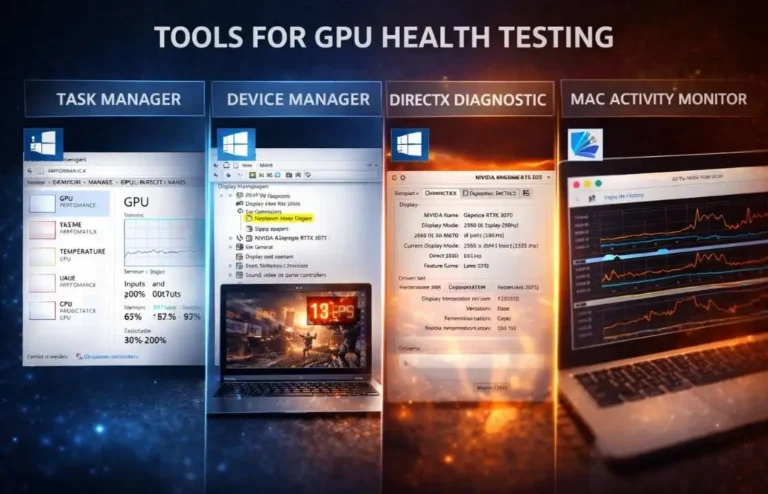
Task Manager offers a fast way to check GPU health in real time. You can view GPU utilization, temperature trends, memory usage and sudden performance spikes. Open the Performance tab and select GPU to see how your graphics card behaves under load. If usage jumps or drops without reason, your GPU may face stability issues.
Checking GPU Status in Device Manager
Device Manager helps confirm whether your GPU works properly at the system level. It shows driver status, device errors and hardware conflicts. If you see warning icons or missing drivers, your GPU health may already suffer. This tool also helps verify whether Windows correctly recognizes your graphics card.
Diagnosing GPU using Windows Settings
Windows Settings provides basic but useful GPU details. You can access display adapter properties and advanced graphics settings to review resolution support, refresh rates and driver data. Problems here often reflect compatibility or configuration issues that affect GPU performance and stability.
Running the DirectX Diagnostic Tool for GPU Reports
The DirectX Diagnostic Tool gives detailed GPU information in seconds. You can check the GPU model, driver version, DirectX support and feature levels. Type dxdiag in the search bar and open the Display tab to view this data. Errors or missing features often signal deeper GPU health problems.
MacOS GPU Health Checks
Mac users can check GPU health through Activity Monitor and System Report. Activity Monitor shows real time GPU load, while System Report reveals hardware details and driver information. If your Mac struggles with visuals or performance, these tools help confirm whether the GPU causes the issue.
How to Interpret GPU Test Results
Understanding GPU test results helps you spot problems early and keep your graphics card running strong. These results show how your GPU handles heat, speed, memory and workload balance. When you read them correctly, you can fix small issues before they turn into major failures.
Normal vs Dangerous Temperature Ranges
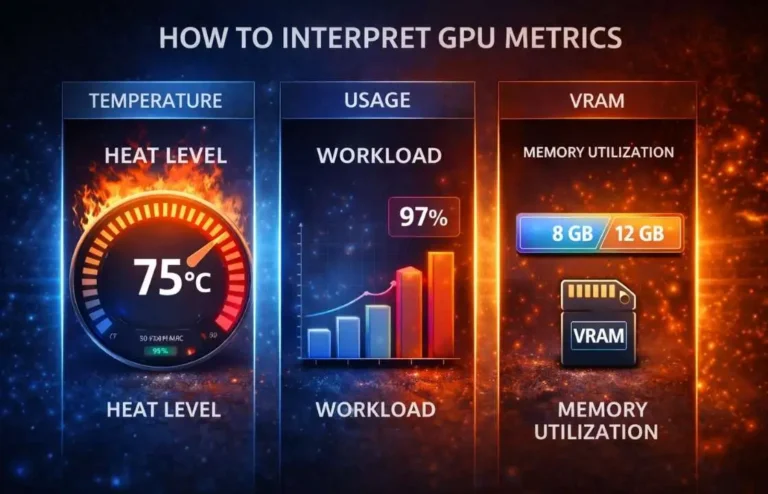
Temperature plays a major role in GPU health. Most GPUs stay healthy between 30°C and 50°C at idle and 60°C to 80°C under load. When your GPU crosses 85°C often, it enters a danger zone. High heat forces the GPU to slow down or shut off to protect itself. A GPU health test that shows high temperatures means you need better cooling or airflow.
Understanding GPU Usage and Clock Speeds
GPU usage shows how hard your graphics card works. Clock speed shows how fast it processes tasks. Under load, both should rise in a steady way. If clock speeds drop while usage stays high, your GPU may throttle due to heat or power limits. Throttling often hides deeper health problems that reduce long term performance.
Analyzing VRAM Usage and Errors
VRAM stores textures, frames and game data. When VRAM fills up too fast, your system may stutter or crash. Visual glitches and sudden lag often point to memory issues. A GPU health test that shows high VRAM use means you may need to lower texture quality or close background apps. Repeated memory errors suggest failing hardware or unstable drivers.
Spotting Bottlenecks vs GPU Failure
Not every performance issue comes from the GPU itself. Sometimes the CPU, RAM, or storage slows the system down. If your GPU usage stays low while FPS drops, your CPU may limit performance. If your GPU shows errors or crashes under load, the GPU likely causes the problem. A proper GPU health test helps separate real GPU failure from system bottlenecks.
GPU Health Test Results Quick Reference Information
GPU Metric | Normal Range | Warning Signs | What It Means |
|---|---|---|---|
Temperature | 30°C–50°C Idle, 60°C–80°C Load | Above 85°C often | The GPU may overheat and throttle |
GPU Usage | 60%–100% under load | Very low during gaming | Possible CPU bottleneck or driver issue |
Clock Speed | Stable under load | Sudden drops or fluctuation | Thermal or power throttling |
VRAM Usage | Below max capacity | Always near full | Risk of stutter or crashes |
VRAM Errors | None | Visual glitches, freezes | Memory instability or failing GPU |
Power Draw | Within GPU specs | Frequent power limit hits | Weak PSU or voltage problems |
System FPS | Smooth and stable | Sudden drops or spikes | GPU or system instability |
GPU Detection | Always recognized | Missing or error shown | Driver or hardware fault |
How to Improve GPU Health and Performance
Good cooling keeps your GPU healthy and fast. Strong case airflow, clean fans and fresh thermal paste help control heat and prevent throttling. Smart fan curves push air when load rises and stay quiet at idle. You should also manage GPU drivers carefully by updating them for performance gains and rolling back when new updates cause crashes or glitches.
Stable power protects your graphics card from long term damage. A weak or unstable power supply can stress your GPU and shorten its lifespan. You should also adjust in game and system graphics settings to match your hardware. Lowering shadows, textures, or resolution can reduce heat and load while keeping smooth gameplay and system stability.
Advanced GPU Health Techniques
Advanced GPU care goes beyond basic testing and cleaning. These techniques help you improve performance while protecting your graphics card from long term damage.
Safe Overclocking vs Undervolting
BIOS and Firmware Updates for GPU
Long Term GPU Maintenance Best Practices
Common GPU Health Problems and Fixes
Graphics cards often show clear problems before they fail completely. When you understand these problems and act early, you can save both performance and money. Most GPU health issues come from heat, software, power, or age.
Overheating Issues and Solutions
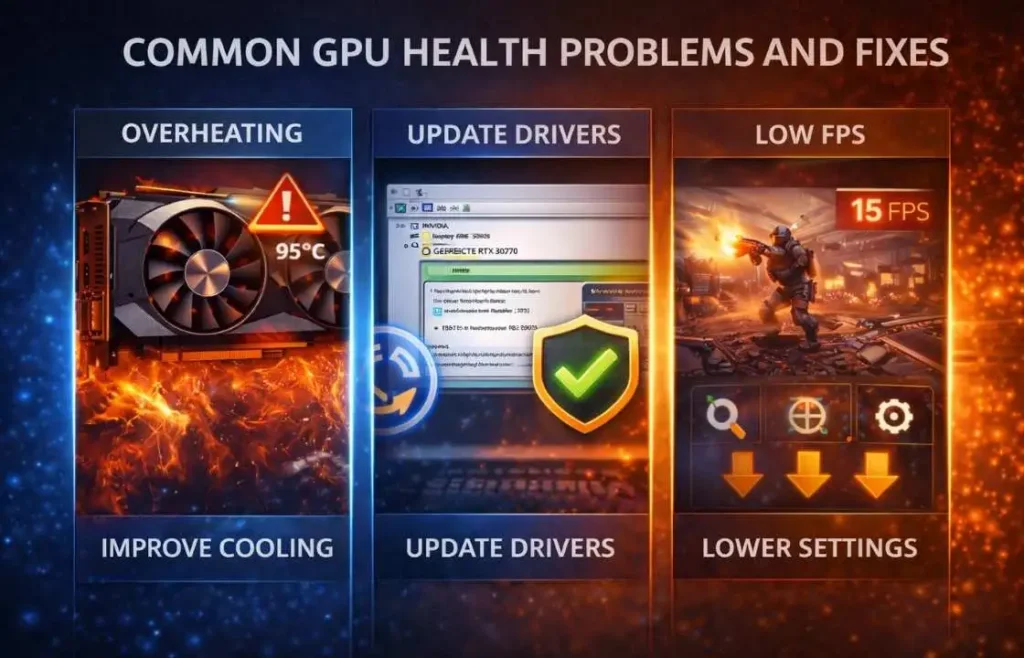
Overheating remains one of the most common GPU problems. Dust blocks airflow and traps heat inside the card. Poor case ventilation also causes high temperatures during gaming or heavy work. You can fix this by cleaning fans and heatsinks, improving airflow and replacing old thermal paste. Lowering graphics settings and using better fan curves also helps control heat.
Driver Conflicts and Software Corruption
Driver issues often cause crashes, freezes and poor performance. Old or broken drivers confuse the system and prevent the GPU from working properly. You can fix this by removing old drivers fully and installing fresh ones. Tools like clean driver installs help avoid leftover files that cause conflicts. Always download drivers from official sources to stay safe.
Power and Connection Problems
A GPU needs clean and stable power to work well. Weak power supplies, loose cables, or damaged connectors can lead to random shutdowns and black screens. You should check PCIe cables, reseat the GPU and use a quality power supply that matches your GPU needs. Good power delivery protects your GPU from sudden damage.
Aging GPU Symptoms and Replacement Timing
As GPUs age, they lose efficiency and stability. You may see frequent crashes, visual glitches, or loud fans even after cleaning and repairs. When problems continue after all fixes, replacement becomes the smarter choice. A GPU health test can help confirm whether repair still makes sense or if it is time to upgrade.
GPU Health Test for Different Use Cases
Different users push their GPUs in different ways. A gamer stresses the GPU with high frame rates, while a creator pushes it with heavy rendering. That is why checking GPU health should match how you are using your system.
GPU Health for Gamers
Gamers rely on smooth frame rates and stable visuals. A GPU health test helps prevent crashes, stuttering and sudden FPS drops during intense sessions. Monitoring temperature and usage keeps the GPU from overheating under load. Stable drivers and clean cooling also protect gaming performance over long hours.
GPU Health for Video Editors and Creators
Creators depend on their GPU for rendering, encoding and real time previews. GPU health problems can cause failed exports or slow timelines. Regular testing helps avoid memory overload and overheating during heavy projects. Stable GPU performance saves time and protects valuable work.
GPU Health for AI and Machine Learning Workloads
AI and machine learning tasks push GPUs harder than most applications. They stress both the core and VRAM for long periods. A GPU health test helps track heat buildup and memory stability during training runs. Without proper cooling and power, these workloads can damage the GPU quickly.
GPU Health for Laptops vs Desktops
Laptops face tighter thermal limits and lower power headroom than desktops. Heat builds faster due to compact design and limited airflow. Desktops offer better cooling and upgrade options but still need regular testing. Understanding these differences helps protect GPU health across all systems.
Frequently Asked Questions – FAQs
Conclusion
Regular GPU health testing keeps your system fast and reliable. When you monitor temperature, performance and memory use, you catch problems before they turn serious. Small actions like cleaning dust, updating drivers and adjusting settings can greatly extend your GPU lifespan. A little care goes a long way in keeping your graphics card strong.
Your GPU plays a major role in gaming, editing and daily tasks, so it deserves proper attention. Pairing GPU health checks with balanced system planning helps your PC perform at its best. When all components work in sync, your system feels smoother and more stable. With regular care, your GPU stays ready for whatever you throw at it.