
Accurate Bottleneck Calculator Tool
Get Real-Time PC Performance Results
[bottleneck_calc]
Ever wonder why your PC lags in games or rendering, even with a strong GPU? The issue often isn’t your graphics card; it’s a PC bottleneck. One component may be holding back the rest, stopping your system from performing at full potential. That’s where the bottleneck calculator steps in. It accurately identifies weak parts and shows which upgrades will make a real difference. Use the most trusted and accurate CPU-GPU bottleneck calculator to avoid unnecessary spending while getting the right balance for better speed, visuals, and performance.

What is the Bottleneck Calculator?
A PC bottleneck calculator checks how well your computer parts work together. It works by comparing your CPU, GPU, RAM, and storage. Then you get to know which of them is lagging behind your system performance. When a part of the PC or laptop is too weak, it slows the rest. The Bottleneck Calc gives a percentage score so you can see which component is holding back your build. If the result is high, it means an upgrade may be needed to balance your setup and get better performance. Our calculator works for both PC and laptops. It’s designed to test every major part, helping gamers, creators, and builders spot problems before upgrading. If you don’t know what PC bottleneck even means, check out the sections below first. Here we’ll talk about the few main types our bottleneck tester covers:


How to Use Bottleneck Calculator
Using the CPU GPU bottleneck calculator takes a few steps. It analyzes your PC parts, usage goals, and performance balance to deliver accurate, data-based results within seconds.
CPU Bottleneck Calculator
The CPU bottleneck calculator checks how fast your processor can handle tasks sent by the GPU. When the processor is slower, it can’t feed data to the graphics card on time, causing lag or lower FPS. This tool calculates how balanced both parts are and shows a bottleneck percentage. Getting a high percentage on the test means you need to upgrade your CPU. A low percentage means your CPU and GPU are already balanced. Also know about, are bottleneck calculators accurate or misleading?
GPU Bottleneck Calculator
The GPU bottleneck calculator focuses on the opposite side, your graphics card performance. When the graphics card is weaker, it struggles to process textures and frames (FPS) fast enough. It shows if your GPU can keep up with your CPU during visual and gaming activities. This happens in older GPUs paired with newer processors. The tool helps identify this mismatch, letting you decide if it’s time for a GPU upgrade or small setting adjustments to balance the system.
Laptop Bottleneck Calculator
The most accurate way to find a laptop bottleneck is through the built-in Task Manager. Press Ctrl + Shift + Esc, open the Performance tab, and check CPU, GPU, and RAM usage. If one part stays at 100% most of the time, that’s your limiting factor. Our bottleneck calculator provides accurate scores for laptops. Use it to compare your laptop’s specs in real time and get suggestions of “where the performance gap” might be. Great for assessing before laptop upgrades like adding RAM, switching to an SSD, or balancing CPU and GPU loads.
Enter Your PC Details
On the tool, select from the dropdown menu or type your hardware components. Include your CPU, GPU, RAM capacity, & storage type (HDD, SSD, or NVMe). The calculator will assess the performance balance between each component.
Define Your Use Case
Select how you primarily use your PC: gaming, editing, streaming, 3D rendering, or daily work. Then, choose screen resolution, refresh rate, and graphics settings. This helps the tool simulate real-world workloads and identify how your system performs under your usual conditions.
Run the Calculation
Once all specifications are entered, click “Calculate.” The calculator will evaluate how each component interacts and detect which one holds back performance. In seconds, you’ll get a report.
Review the Report & Percentage
You’ll receive a detailed performance report with a bottleneck percentage:
The report also shows the type of bottleneck, such as CPU, GPU, or storage.

Disclaimer!
Some users think bottleneck calculators are unreliable, but that’s not true when you understand how to read the data. This tool isn’t exact; it’s a guide that ranks compatibility and shows balance ranges. It doesn’t account for PCIe generation, but it accurately highlights pairing issues. Use gaming mode for best results; we’ll explain how to interpret results next.
Understanding Bottlenecks in Computing Systems
Every component of PC (CPU, GPU, RAM, and storage) works together to give lag-free and fast operation. A bottleneck happens when one part of the PC is slower than the rest. It creates an “imbalance” that limits overall performance. So, when one part is too upgraded and the other is slow, it leads to stutters, lag, or reduced frame rates.
CPU Bottleneck
The CPU bottleneck calculator checks how fast your processor can handle tasks sent by the GPU. When the processor is slower, it can’t feed data to the graphics card on time, causing lag or lower FPS. This tool calculates how balanced both parts are and shows a bottleneck percentage. Getting a high percentage on the test means you need to upgrade your CPU. A low percentage means your CPU and GPU are already balanced.
GPU Bottleneck
The GPU bottleneck calculator focuses on the opposite side, your graphics card performance. When the graphics card is weaker, it struggles to process textures and frames (FPS) fast enough. It shows if your GPU can keep up with your CPU during visual and gaming activities. This happens in older GPUs paired with newer processors. The tool helps identify this mismatch, letting you decide if it’s time for a GPU upgrade or small setting adjustments to balance the system.
Insight! CPU vs GPU Bottleneck: What’s the Difference?
The CPU manages logic, physics, and AI, while the GPU handles visuals. To know the difference, here’s a quick workflow to understand:
When the CPU lags, games stutter, and when the GPU struggles, frame rates stay lower but consistent. The difference helps you understand what needs upgrading before assuming your system is weak.
RAM Bottleneck
When the PC runs out of memory to handle active tasks, it slows down, and a RAM bottleneck occurs. Signs include sudden game freezes, slow app switching, and memory usage consistently near full capacity. All of this means your system is compensating for full performance by using slower storage space.
Storage Bottleneck
A storage bottleneck shows up when the PC’s hard drive or SSD transfers data more slowly than the full system needs. This delay affects everything. Signs include slow game and app loading, long file save times, and delayed Windows startup. Even if your CPU and GPU are strong, slow storage will restrict the system’s performance.
How to Make Sense of Your Bottleneck Calculation Results
We’ve already explained what each percentage means, but there’s more to your report than numbers. After running the bottleneck PC test, you’ll see which part limits performance and how each component interacts. Here’s how to interpret the report correctly.
Checking Component Balance
Identify whether it’s a GPU bottleneck, or CPU bottleneck, or another component. Knowing which side is underperforming to balance overall performance.
Planning for Upcoming Software
When reviewing results from the bottleneck checker, think ahead. Software and games evolve fast, demanding higher performance over time. Even if your build performs well today, plan upgrades that keep up with future needs.
When to Actually Worry About Bottlenecks
A bottleneck test helps only if you notice problems, like frame drops, stuttering, or maxed-out CPU/GPU usage. Don’t obsess over minor percentage imbalances, but if performance feels slow and monitoring confirms a limitation:
- GPU-bound and want higher FPS? Lower graphics settings or upgrade your GPU or monitor.
- CPU-bound and want more frames? Reduce CPU-heavy settings or upgrade the processor.
Various CPU and GPU Bottleneck Scenarios
The CPU and GPU on a PC or laptop share the workload, so understanding this can help identify which part limits performance. We’ve given common usage patterns to explain how to read bottlenecks and plan upgrades accurately.
Low CPU & Low GPU Usage
When both components show low usage, your system is optimal. This usually happens in light or older games. It means smooth gameplay and background activity as the hardware can easily handle tasks.
Low CPU & Maximum GPU Usage
This means the game or task depends mostly on graphics. Your GPU is maxed out, while the CPU remains free. Can be fixed by lowering graphics settings or upgrading the GPU to increase frame rates.
High CPU & Maximum GPU Usage
It shows a balanced PC built as both parts are working efficiently. You might see a slight GPU limit in demanding titles, but it doesn’t affect overall performance due to good resource distribution.
Maximum CPU & Low GPU Usage
Here, the CPU is the limiting factor. It’s fully loaded while the GPU idles. This happens in CPU-heavy programs. A stronger processor can help get better performance and higher frame rates.
Maximum CPU & High GPU Usage
Your CPU is maxed, and the GPU is near full load. The setup can perform well, but there’ll be small frame drops. Reducing CPU-demanding settings can balance the performance.
Maximum CPU & Maximum GPU Usage
Both components are fully utilized, meaning your system runs at peak capacity. This is typical in high-end gaming or heavy workloads. Just maintain good cooling to sustain stable and safe performance.
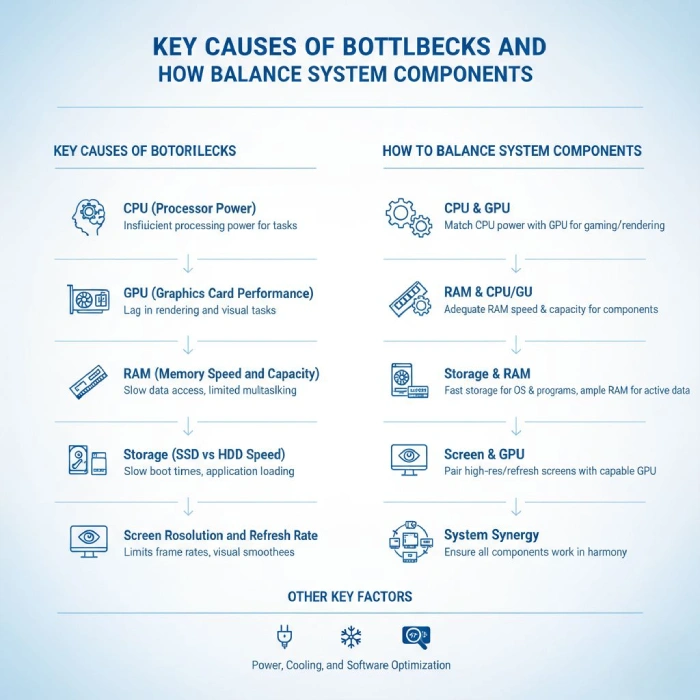
Key Causes of Bottlenecks and How to Balance System Components
This section is important if you’re updating the PC setup as a whole. Understand what causes bottlenecks so you don’t waste money on mismatched parts. Read this before you make a PC setup (can’t afford that yet? Check how to reduce bottlenecks in the existing PC in the next section). Knowing the causes helps you balance parts better, spend smarter, and get real gains in gaming and productivity.
CPU (Processor Power)
Spending all on the GPU and less on the CPU can cost a lot. For example, pairing a Ryzen 3 with an RTX 4080 will cause an imbalance because the CPU can’t keep up.
To balance, choose a CPU that matches your GPU’s level. Go for a high-end processor only if you stream, multitask, or play CPU-heavy games. You can pick mid-tier chips if you mostly play lighter titles. Aim for a setup where both CPU and GPU perform efficiently together, neither too strong nor too weak.
GPU (Graphics Card Performance)
A slow GPU causes low FPS and poor visuals, even in a high-end system. Using an older card like a GTX 960 in a modern setup leads to visible lag and reduced graphics performance.
To balance, pick your GPU based on your display resolution and game type. For 1080p, a mid-range card works fine; for 1440p or 4K, invest in a higher-end GPU. Your CPU and GPU should complement each other as matching tiers avoid wasted potential on either side.
RAM (Memory Speed and Capacity)
A longer loading time means the system has less or older RAM. DDR3 or limited 8GB memory is a common cause of bottleneck in performance for newer games or heavy workloads.
To balance, modern builds should start with at least 16GB of DDR4 or DDR5 RAM. Gamers who stream or edit videos should even invest in 32GB. Memory speed helps, but balance matters more; consistent performance comes from pairing your RAM speed with your motherboard and CPU support.
Storage (SSD vs HDD Speed)
Storage speed affects loading times, boot performance, and texture rendering. A traditional HDD can drag system response down, even with high-end processors. Delayed loading or texture pop-ins often trace back to slow drives.
To balance, upgrade to an SSD or NVMe drive. It won’t boost FPS, but it removes slowdowns and reduces stutter in large games. Combining fast storage with balanced CPU and RAM guarantees consistent performance across tasks.
Screen Resolution and Refresh Rate
PC’s monitor and screen settings can also create a bottleneck. Don’t buy a 240Hz monitor if your GPU can only output 60 FPS, and don’t waste GPU power on 4K if you only have a 1080p screen. High resolutions need a strong GPU, while low resolutions can work on CPU power.
To balance, try matching the monitor’s refresh rate and resolution with your GPU’s output. Pick a high-refresh monitor (144Hz or 240Hz) for competitive games, like Valorant or Apex Legends (with a GPU that can match its FPS). For slower or indie games, choose a 4K monitor for detailed visuals instead of chasing higher frame rates.
Other Key Factors (Power, Cooling, and Software)
Other overlooked issues include the power supply unit, cooling system, and background software. A weak power supply ends up limiting voltage delivery to components, which slows down performance or causes shutdowns. Poor cooling overheats components, and unoptimized software or too many background apps drain CPU and RAM resources.
To balance, use a quality power supply with adequate wattage and consistent cooling (liquid or fans). Keep your system clean, drivers updated, and background tasks limited.
Ready-Made Bottleneck-Free Builds Simple to Advanced
While building PC setups, think about what you’ll use it for. For high-resolution gaming, spend more on the GPU and screen. For fast-paced games like Warzone or VALORANT, go for a fast CPU and a monitor with a high refresh rate. Here’s a quick look at balanced setups for different budgets.
Best Ways to Reduce PCBottlenecks
Not everyone can afford to build a new PC, but here are some of the best proven ways to fix or reduce a CPU-GPU bottleneck without replacing your entire setup.
Key Features of Accurate and Trusted BottleneckCalculator
Make sure to use an accurate bottleneck calculator PC to detect which component limits your system’s performance. It can show weak areas and suggest upgrades that improve speed in gaming, design, or multitasking. Here’s how our bottleneck tester stands out:
| Features | Our Tool | Competitors |
|---|---|---|
| Component Coverage | CPU, GPU, RAM, Storage, Resolution, and Purpose | Usually limited to CPU and GPU |
| Results | Detailed reports with actionable insights | Basic text-only output |
| Recommendations | Exact upgrade suggestions by component | General advice like “Upgrade CPU” |
| Mobile-Friendly | Fully responsive on phones and tablets | Often not mobile-optimized |
| Data Freshness & Tech Updates | Regularly updated with real-world benchmarks | Outdated data and missing hardware |
When to Use the BottleneckCalculator?
Not everyone needs a bottleneck calculator. If your PC runs well, there’s no need to obsess over percentages or scores. Use it when your PC starts lagging, freezing, or struggling with heavy tasks. Here are the best times to use it:
When Games Start Lagging
If your game stutters or frame rates drop, check for CPU CPU-GPU bottleneck. The calculator shows which part struggles with your current settings, so you can fix or upgrade.
Before Editing or Rendering Videos
If rendering or editing feels slow, use it to see if RAM or GPU can’t keep up. It helps decide if you need more memory or a stronger GPU.
When Testing New Resolutions
Planning to move from 1080p to 4K? Use a bottleneck testing tool to see if your GPU can handle a higher resolution without slowing down or stressing the CPU.
Before Spending on Upgrades
Upgrading randomly wastes money. The calculator highlights weak parts only, helping you upgrade the right component instead of replacing hardware that still performs well.
When Planning Future Builds
If you’re pairing a new CPU and GPU, run them through the calculator. It checks how well they match, so you don’t end up with mismatched or unbalanced performance.
Before You Upgrade, Run a Bottleneck Calculator Check!
Every PC has small limits, but knowing which part holds it back makes upgrades worth it. Our trusted bottleneck calculator helps you find out if your CPU, GPU, or RAM is slowing things down. It works as a laptop CPU-GPU bottleneck calculator, as well as for desktops. Use the best bottleneck calculator to save time, money, and confusion. For an alternative or second opinion, track usage in Task Manager or HWInfo for real-time proof.
Frequently AskedQuestions